Tuesday, September 20, 2011

iOS Development and Programming with Flash Builder - Preparation Guide

Many people have wanted to get into iOS development to build applications for iPad, iPhone, and iPods.  Developing in Objective C is one option but this would require you to have different projects if you also wanted to create mobile applications for Android and other operating systems.  With Adobe Flash Builder 4.5.1, you can write a code base once and compile it for iOS, Android, Desktop, Adobe AIR and BlackBerry Tablet OS without substantial modifications.  This is the second in a series of articles explaining how to set up your development environment.  The previous article was for BlackBerry Tablet OS development with Flash Builder.


In this post, you will learn how to generate a digital certificate and a provisioning file, both required to install and run a mobile application on an iOS device.  If you're to attending my Adobe MAX preconference hands-on code camp and you plan on using your iOS device, you'll need the certificate and the provisioning file before you arrive.

The instructions below are geared towards Mac OS.  If you're developing on Windows or if you run into problems with the Apple Development Provisioning Assistant I recommend following the steps in Holly Schinsky's thorough guide.

1.    Navigate to the Apple developer center and apply for an account.  This will cost approximately $99 and may take up to two business days.  The URL is http://developer.apple.com/devcenter/ios/index.action

The next step is to obtain a Development Certificate. (Again the steps below are for Mac only.  If you're on Windows you'll need to use OpenSSL or something similar.)

 2.   To generate a Certificate Signing Request (CSR) with a public key, start by opening  your Applications folder, then open the Utilities folder and launch Keychain Access.

3.    Choose Keychain Access > Certificate Assistant > Request a Certificate from a Certificate Authority.


4.    In the Certificate Information window, enter or select the following information:
  • In the User Email Address field, type your email address
  • In the Common Name field, type your name
  • In the Request is group, select the Saved To Disk option
Click Continue.


5.    The Certificate Assistant saves a Certificate Signing Request (CSR) file to your Desktop.  I use a folder in the Flash Builder workspace named Apple with two subfolders, CSRs and Provisioning.
The public/private key pair will be generated when you create the Certificate Signing Request (CSR) if you use the Key Chain Assistant to create the CSR.
6.    Submit the CSR through the Provisioning Portal at https://developer.apple.com/ios/manage/overview/index.action.
After logging into the iOS Dev Center, click iOS Provisioning Portal.


7.    Click the Certificates link on the top left hand side.


 8.    Click the Development tab. 

Note: To deploy an application to a device, you need a development certificate. To deploy the application to the Apple App Store, you need a distribution certificate.  For the purposes of this session, you can use a development certificate.

9.    Click Request Certificate, and then upload the certificate request by choosing the CSR file and clicking Submit.

When the status on your certificate request is "Issued", you can move on to getting a provisioning file.


 10.  Click the Home link on the top left hand side to return to the iOS Provisioning Portal's main page.

 11.  Click Launch Assistant to start the Development Provisioning Assistant.


  12. The assistant will launch and provide an overview of the steps required to create a provisioning profile. Click Continue.
13.    When the Assistant asks you for the App ID Description, type MAX2011 and click Continue. 


  14.    Specify the device you are going to use.  (If you have previously set up a device, you can select it from a drop down list.)  

Type a description of your device (for example, John Smith iPad) and type its Unique Device ID.

Apple provides the following guidance for locating your Unique Device ID:
To locate your UDID, connect your device to your Mac and open Xcode. Navigate to the "Window" drop down menu and select "Organizer". The 40 character string in the Identifier field is your device's UDID. Copy and paste this string into the field above.

 Click Continue.
 
 15.    You will be prompted for a certificate.  The certificate you created earlier should be visible.  Click Continue.

 16.    On the next screen, type a Profile Description (for example, MAX2011) and then click Generate.


17.    This will generate a provisioning file named something like MAX2011.mobileprovision. Download it and save it under your Flash Builder workspace.  For convenience, I save mine under a folder to hold all Apple iOS related assets used by multiple applications.


18.  As a final step, you'll want to convert your development certificate to a P12 certificate file.  See Converting a developer certificate into a P12 file for detailed instructions on generating this file on Mac OS and Windows.

That's it...you have finished the preparations for your iOS device and Flash Builder.

To build an iOS app in Flash Builder you'll need:

  • Your iOS development certificate in P12 format
  • Your Application ID to insert in the application descriptor XML file
  • Your developer provisioning profile


If you have any problems with the steps, email me at dnickull at adobe dot com. 

Wednesday, September 14, 2011

BlackBerry Tablet Development with Flash Builder 4.5.1

If you're attending the Adobe MAX preconference hands-on code camp that Garth Braithwaite and I will be delivering, you'll need to do some preparation in advance.

In this post, I outline the steps for BlackBerry Tablet preparation, which should be done well in advance if you want to run the code-camp application on the device.

Below is a depiction of the steps required. 


Figure courtesy of Research in Motion.

 0.  Request BlackBerry code signing keys, and obtain RDK and PBDT CSJ files from BlackBerry at https://www.blackberry.com/SignedKeys/. According to RIM, it may take up to two hours to receive the keys in  via email. (You may want to leave a bit of leeway here, mine took about three hours to arrive.)


1.       Once the emails arrive, save both of them to your local file system. For convenience, I set up a folder inside my Flash Builder 4.5.1 workspace named BlackBerryDev and saved both of the CSJ files to that folder.


  Note: If you want to know what these files are, check out the additional documentation at this URL:  http://docs.blackberry.com/en/developers/deliverables/23959/Signing_your_application_1422721_11.jsp

Basically the file with the PBDT is a PlayBook Debugging Tool.  The RDK one is not easy to find information about.

2.       Start Flash Builder 4.5.1.  

3.       Choose Flash Builder > Preferences (or Window > Preferences) to open the Preferences dialog box.

 4.      In the Preferences dialog box, select Flash Builder > Target   
   Platforms > BlackBerry Tablet OS as shown below.


5.    Click the "download and install the SDK" link.

6.    When you click the link, your default browser will open and load the page at http://us.blackberry.com/developers/tablet/ . Click the "BlackBerry Tablet OS for Adobe AIR" link in the bottom left.

7.    Then click either Download BlackBerry Tablet OS SDK for AIR for Windows or Download BlackBerry Tablet OS SDK for AIR for Mac.


8.    Shut down Flash Builder during the next few steps.

 
9.    When the download is finished, click the installer and install the SDK.  There are several steps to pay close attention to.
  
10.    When asked if you want to integrate with Flash Builder, select Yes as shown below.

 In the next step you will be asked where Flash Builder is installed.  By default, this will be /Applications/Adobe Flash Builder X.X (on OS X) and c:\Program Files\Adobe\Adobe Flash Builder (on Windows).  DO NOT confuse this with the location of the current workspace used by Flash Builder.


11.    Next you will be prompted for a location to install the BlackBerry SDK.  As with the CSJ files above, I chose to use the folder BlackBerryDev under the Flash Builder workspace in order to keep all assets in one place.

12.    Click Next, and then click Install. Before the install completes you may see a message notifying you that you'll need to upgrade the SDK plug-in.  The steps for doing this are as listed in step 13a below.

13.    You should see the final screen indicating success.  (If anything went wrong, please consult the Research In Motion (RIM) developer site.)  Click Done.


13a.  If you were instructed to upgrade the SDK plug-in after installation completed, then follow the steps you were given on the screen, which I've summarized below.  NOTE: Make sure you run Flash Builder as administrator when performing these steps:


1. In Adobe Flash Builder, choose Help > Install New Software.
2. In the Available Software section, click Add.
3. In the Add Repository section, click Local, navigate to <BlackBerry_Tablet_OS_SDK_Install_Directory>/update_site_for_FB and click OK.

4. Back in the Available Software section, select BlackBerry Tablet OS Support, and click Next.

14.    Re-open Flash Builder, open the Preferences dialog box, and again select Flash Builder > Target Platforms > BlackBerry Tablet OS. 

15.    Click the SDK Path Browse button and navigate to the folder in which  you just installed the BlackBerry Tablet SDK.  Select that folder and click Save.


16.    Click OK to close the dialog box.

17.    Open the Preferences dialog box once more.

18.    Select Flash Builder > Target Platforms > BlackBerry Tablet OS > Signing and click Register.


19.    To register with the RIM Signing Authority, you must provide the following information:


RDK CSJ Path:        Specify where you installed this file
PBDT CSJ Path:      Specify where you installed this file
CSJ Pin:                  Type the PIN you used when you registered to receive the CSJ  files on the BlackBerry Website.
CSK Password:       Type a password.
Confirm CSK Password:    Retype it.

Also, select the Save Password option.  If you see an option labeled Automatically Generate Development Certificate, select that as well.


20.    Click OK once you have entered this information. Flash Builder will register with RIM.

21.    You are now ready to create a certificate.  Back in the Preferences dialog box, click Create Certificate.


22.    In the Create Developer Certificate dialog box, fill in the required information.


Certificate Path: This is the path you want to store the new certificate in.  Once again, I chose to use the <Flash_Builder_Workspace>/BlackBerryDev/ folder, but I added a new subdirectory named Certs to store the certificate.  I like to keep all the BlackBerry assets in a single location.

Author:  For some reason, this setting seems to work best with no spaces.  Use your name or company name.

Keystore Password: Create a Keystore Password you will remember.  You will be prompted for this each time you use this certificate.

Save Password: Select this option.

Click OK.

23.    You are now ready to add devices.  Turn on your BlackBerry Playbook tablet and click its Settings icon (the gear icon in the upper right). 


24.    Within the settings screen, select Wi-Fi, ensure Wi-Fi Connectivity is enabled, and join the same network as your development machine.  In the example shown below, this is duanenet.

25.    Next, click About in the top left corner and then select Network from the drop down menu to find your IP address.  In the example shown below, it is 192.150.23.8.


26.    You will need to upload a debug token to the device.  Select Security on the left and click Development Mode.


27.    In the Development Mode screen, toggle Use Development Mode on, and then click Upload Debug Token. Note: When you turn Development Mode on, you'll need to set a device password if you have not already done so.  Remember the password you set, you'll need it again in Step 29.


28.    Back in Flash Builder, open Preferences and select Flash Builder > Target Platforms > BlackBerry Tablet OS > Test Devices.
  

29.    Click Add to add a test device. 


In the Add BlackBerry Tablet OS Test Device dialog box, enter the following information:

Device Name:   Type a descriptive name for your device.
Device IP:         Type the IP address you obtained above.
Password:         Type the password for the device.
Save password: Select this option.

30.    Click  Create A Debug Token And Upload It To This Device.   This will bring up a warning that says you have to put your device in debug token upload mode.

You've already done this in previous steps, so just click OK.  If the device times out of upload mode, you may have to repeat these steps.


31.    If all goes well, you should see your device listed as a Test Device. Click OK.


32.    You should also see your device indicate that the Debug Token has been installed.


33.    Congratulations!  You have finished the preparations for your BlackBerry tablet and Flash Builder.


If you have any problems with the steps, email me at dnickull at adobe dot com.

Thursday, September 08, 2011

ColdFusion Developer Week - Sept 12-16 and FREE!


ColdFusion Developer Week is a series of free, live webinars hosted by seasoned ColdFusion experts who will cover a wide range of topics from what ColdFusion is, how to code it, all the way through to more in depth topics such as ORM and ColdFusion Builder Extensions. If you are a new developer, someone with little or no ColdFusion experience, or even if you have been using ColdFusion all your life, this event is ideal for you. The ColdFusion Developer Week provides something for everyone, so sign up now! http://www.adobe.com/cfusion/event/index.cfm?event=detail&id=1489920

WOOT!

Tuesday, September 06, 2011

Adobe MAX 2011 - Developing cross-OS mobile apps with Adobe Flash Builder, Flex, AIR & ADEP

At Adobe MAX on Sunday (preconference), Garth Braithwaite and I will be delivering a very cool hands-on code camp.  This is a 480-minute session and a bring-your-own computer session so if you register for it, you will need to do some preparation.  Some of the preparations will be posted on this site but they will also be pushed to all registered attendees.

In this lab you'll get up and running building a mobile application with Adobe AIR. The lab will focus on the smartphone form factor, so bring your Android phone, BlackBerry PlayBook tablet, or iPhone. We'll do an introduction to AIR for mobile and then dive into the Flex framework to see how it makes building standalone applications easy. You'll learn how to use native device features like the camera or GPS, plus how to create and manage views, data, and layout within your application. You'll also get a hands-on look at how to debug, optimize, and deploy to devices using Flash Builder.

Part of this course will be focused in on using the Adobe Digital Enterprise Platform (ADEP) and connecting to it using Flash Builder.

Here is a rough sketch of the session:

Lab 1: Building a new Mobile Application Project
Lab 2: Pushing Data Between Views
Lab 3: Packaging and Deploying the Application
        3.1 Android Release
        3.2 iOS Release
        3.3 BlackBerry Tablet OS Release
Lab 4: Getting System Details
Lab 5: Adding a Back (Home) Button to the ActionBar
Lab 6: Zoom Gestures
Lab 7: Pan Gestures
Lab 8: Rotate Gestures
Lab 9: Accelerometer

LUNCH
BREAK

Lab 10: Install the Flash Builder ADEP Plugins
Lab 11: Starting and learning the ADEP Server
Lab 12: Installing the ADEP SDK and Samples packages
Lab 13: Extract, Set up and Run the sampledb
Lab 14: Enable Remote Data Services via the Felix Console
Lab 15: Retrieving and Installing the ADEP SDK into Flash Builder
Lab 16: Setting up a new Flash Builder ADEP Project
Lab 17: Building the Flex Client Application for ADEP
               Demonstrating the Application
Lab 18: Adding Nodes and XML Content to ADEP
Lab 19: Building a Flex Mobile Project that consumes ADEP Services
               How to build the ADEP_XML View
               Getting Details about each wine
Lab 20: Advanced ADEP mobile services
Lab 21: Building a RESTful mobile application with ADEP
Lab 22: Learn how to use cross-­platform push messaging
Lab 23: Learning how to use local notifications
Lab 24: Adding two-­factor authentication

CAVEATS:

There is no guarantee this is the final list of labs however it should be relatively close.  

Requirements:
- comfortable with XML syntax
- some coding experience would be good

There are still some seats left for this session.  You can register at:
https://max.adobe.com/schedule/by-day/
Preconference session 403-A

Wednesday, August 31, 2011

My rock life in Tech

22nd Century just released the 2nd video featuring the title track from Where's Howie!?  24,000 views in the first two weeks!  Hope you enjoy the alter-ego Duane Nickull aka Duane Chaos

Thursday, August 25, 2011

A FREE Adobe Flex/AIR Mobile Code Camp


In advance of Adobe MAX 2011 - Monday, September 26, 2011, 9:00 AM in Vancouver, BC

500 Granville StreetVancouverBC (map)

Rooms 1200-1500 on Main Floor
SELECTED BY: PATTY LEE
Adobe Sr. Technical Evangelist Duane Nickull will lead a FREE full-day hands-on development class to teach all attendees how to build mobile applications that run on iOS, BlackBerry Playbook Tablet OS and all Android 2.2 or later devices.  This course is meant to be taken hands-on, code-camp style with your own computer.  
What you will learn:
- how to set up your mobile development environment on your own computer (a preparation guide will be sent out in advance)
- how mobile applications are architected and run in cross-platform scenarios
And then nothing but coding!!
Learn how to create mobile applications to target iOS, Android, and BlackBerry PlayBook operating systems via hands-on development. Topics will include architecture of portable code (code that runs on more than one platform); setting up your mobile application project; using and sharing data between views; accessing and using smartphone and tablet features such as cameras, microphones, and accelerometers; native application integration; file system browsing and storage; graphics and layout; deploying to your devices; and more.


You will also learn how to install and use the Adobe Digital Enterprise Platform (ADEP), a services (OSGi) platform written in Java, and how to connect to it to build enterprise class applications.
When you leave this session, you will be immersed in knowledge and have the ability to create your own mobile applications for your company or new startup.

Tuesday, August 23, 2011

Adobe MAX 2011 - Rock and Roll!

In case you've been hiding under a rock for the past decade, you should know that Adobe MAX 2011 is going to be the best tech event of the year. This year, Adobe MAX 2011 will be held at the Los Angeles, CA convention Center for the third straight year. I will be on hand to present tons of new materials, concentrating on only hands-on code camps with Bring-your-own-computer sessions.

The first one I want to tell you about is the 480-minute long session  PB1300 - 
Deploying cross-vendor, cross-OS mobile applications with Adobe AIR

The description of this session is not really on track but here is what you will learn in this full day lab session.  The title should be Developing cross-OS mobile applications with Adobe Flash Builder, Flex, AIR, and ADEP.

- Setting up your development environment.  Note that we will send out a full preparation guide in advance that will explain how to set up Flash Builder with the new Adobe Digital Enterprise Platform (ADEP) and the plugins and tweaks to build applications for BlackBerry PlayBook Tablet OS, all Android devices, and iOS.

Rather than the session title of "Deploying", at Adobe MAX 2011 you will be "Building".  This means a full day of hands-on coding with two instructors (myself and Garth Braithwaite) as well as some great TAs such as Matt MacKenzie and Stacy Young who we hope to entice into teaching some of their expertise.

In this MAX 2011 lab you'll get up and running building mobile applications with Adobe Flash Builder, using both the Flex Framework and Adobe AIR. The lab will focus on the smartphone form factor, so bring your devices. We'll do an introduction to AIR for mobile and then dive into the Flex Framework to see how it makes building standalone applications easy. You'll learn how to use native device features like the camera or the accelerometer plus how to create and manage views, data, and layout within your application. You'll also get a hands-on look at how to debug, optimize, and deploy to devices using Flash Builder and connect to remote services from ADEP.

This special Adobe MAX 2011 preconference session is only run once on Sunday 9:00 to 5:00 PM!
https://max.adobe.com/schedule/by-day/

Friday, August 19, 2011

Free multi screen mobile app - Magic Screen Pro

After working on this for a few hours more I decided to release it into the wild.  It is available in the Android Marketplace as "Magic Screen Pro".  The application is basically a freehand drawing application that allows the user to select line thickness and color.   This is a sample screenshot of the app:


This app has several new features not seen on many other Flex/AIR mobile applications.  First, it features the ability to save work as *.jpg files.  For some reason this sometimes sticks on the iPad.  Secondly, it has a unique color picker custom component for mobile.  I published this component separately here.  It also accesses the camera roll so you can add background images.


There is no way I have found to flatten two layers when one supports a transparency channel though, so you can only save the drawing.


The source code for this app is hosted on my band's website at
 http://www.22ndcenturyofficial.com/ForBlogDoNotDelete/MagicScreenPro.fxp


Monday, August 15, 2011

LiveCycle ES3 is now released as ADEP, lists open for business!


I have been debating how to write this message for a while and finally decided to make a brain dump to this blog and on the Google list.

As many of you know, Adobe has decided to retire the name LiveCycle for what would have constituted the ES3 release.  The new release is called the Adobe Digital Enterprise Platform (ADEP).  The Document Services side of the product itself will be very familiar to LiveCycle developers and components such as the server, WorkSpace and WorkBench/Designer are all present and well built.  

*******UPDATE*******
Adobe LiveCycle is BACK as a brand name!  For information on how to get the Adobe LiveCycle ES3 download, click here.  I no longer speak for Adobe however it appears that Adobe has returned to using the LiveCycle name for the product again.  Uberity Technology Corporation has also added a new section for LiveCycle Professional Services and LiveCycle Consulting.  I am glad the LiveCycle ES name is back
*********END*********

The great news is that it is available for download now!!! 

This leaves a quandary for the user group lists and I am going to make a suggestion.  There are two relevant lists for LiveCycle ES developers that will be affected as well as a new list for ADEP developers.

The first is the official Adobe LiveCycle Developer list.  This has well over 10,000 posts and is a great group.  For the last 5 years, a second list, the LiveCycle Developers List on Google's platform has been a community owned list and helped introduce thousands of new developers to LiveCycle.  We set this up originally as a community list based on a suggestion during a "Meet the Team" event at Adobe MAX in 2006 when it was disclosed that the then current LC lists were not working well for everyone.  There are hundreds of code samples and file downloads, all of which will available until August 31, 2011 (Google's limitation, not ours).  Please understand that this group is not an Adobe group, it is owned and run by the community. It is not any single person's decision to kill the group or move it.   I have moderated it and tried to keep spam from reaching members but it is not my list.  To re-iterate however, the official Adobe LiveCycle ES list at http://www.adobe.com/support/livecycle/ is also a wealth of knowledge.

Adobe has placed a huge emphasis on the developer knowledge exchange experience and has already set up a new list for ADEP users.  The ADEP Developer program is now open for business at http://www.adobe.com/devnet/enterprise-platform.html.  It also has a brand new list (URL below).

While it is not my decision, here is what I will recommend.  

All developers moving on to ADEP (a.k.a. LiveCycle ES3 and beyond) should sign up for the new developer center.  You can sign up at http://forums.adobe.com/community/adep (I made my first post today!). We want to avoid duplication and make sure there is a single consistent place to ask technical questions and be informed of new events etc.   PLEASE:  do not use the existing LiveCycle lists to discuss ADEP topics as this will lead to fragmentation of knowledge and duplication of effort.

While not my decision, I believe we should leave the existing LiveCycle Developers list on google until it becomes unnecessary based on low traffic or low membership.  It is important to recognize that not all customers will move on right away and I am not going to suggest we close the list as it still provides an important function.  While this list does somewhat duplicate the official Adobe LiveCycle lists, I know many of you have found it to be a great resource and nothing will change.  I will personally remain on that list as well.  It might be prudent to move over to the official Adobe list to consolidate the knowledge base into one area.

The last item I want to encourage you all to do is to consider downloading ADEP from the http://www.adobe.com/devnet/enterprise-platform.html site and attend Adobe MAX this year to learn all about the new features in various hands-on sessions.  We have put a lot of work into this release and it also communicates with the software formerly from Day Software.  There are architectural documents at the new ADEP developers center to explain how this all works.  I have a new course on ADEP that will teach you how to get started, which will be shared on the new ADEP list.

The Adobe official LiveCycle ES lists are going to operate as normal to service existing LiveCycle ES developers.

Thank you for all being part of this great ride and I hope you will jump on board with ADEP and continue to learn more!  Sometimes it is hard to let something you have grown and nurtured wither over time.  I urge you to look at the bigger picture and the fact we are all part of the coolest tech community on the planet.  Long live the "LiveCycle/ADEP" developers!!   

Duane Nickull

Tuesday, August 02, 2011

Video - discussing the importance of geo and mobile

This is an interview I did last year about the importance of geo-tagged data and mobile devices. It is interesting to look at these later to see how the predictions stack up against reality. In this case, it was particularly accurate. Enjoy!


More great blogging about Adobe from Bangalore

After spending a week in Bangalore India, we capped off the Adobe Flash Platform Summit with a great Bloggers Social night at the Biere Club.  Maybe is was the lure of a micro-brew or dangling evangelists out to be asked any question (seriously - nothing was forbidden to ask), but this event was my favorite.  I had the immense pleasure of meeting Balachander Balu, one of India's more influential and prolific bloggers.

I just caught wind of another well written article from Balu at Tech Bit N Byte.  Here is a small snippet.  Read the rest at http://www.techbitnbyte.com/adobe-flash-platform-summit-2011/

"Two Adobe evangelists Duane Nickull and Renaun Erickson, Took over from there, They had demonstrated the capabilities of 3D, The cool thing was they had designed it through FLASH, The Best part is they had designed it within 40minutes, Isn’t it amazing, would you believe designing a software within an hour, I know you can’t but it’s the fact. Adobe ROCKS everywhere. I know there are lot of 3D tools available in the market, Myself I use one private 3D tool to design anything which I want it in 3D, but designing in Flash is something really Cool, They had shown Split screen CANOE moving across multiple devices, Even that was also Astonishing. Really I had no words to explain it; it was really privileged for me to be in the Adobe’s party."


Monday, August 01, 2011

Compiling Flash Builder Projects for iOS

Despite our massive messaging effort, many people are not aware that they can use our tools to develop applications for iOS devices.  Flash Builder 4.5.1 works so well for this that even I have built a few.

Holly Schinsky has written up an awesome explanation of how to do this.  Rather than repeat it again, take a look at her excellent work.  Apple thing that includes provisioning / cert info -- http://devgirl.org/2011/06/20/flexair-for-ios-development-process-explained/

Yes - you can now compile your Flash Builder applications to iOS!!

Sunday, July 31, 2011

Fantastic new book out by Paul Trani et al

My friend Paul Trani has recently cowritten a new book called Pro Android Flash. In fact, not only do I know the authors (Stephen Chin, Dean Iverson, Oswald Campesato, and Paul Trani) but I helped Oswald with several technical bits while he was writing his contributions to this book.

Pro Android Flash is likely to be a definitive guide to building Flash and other rich Internet apps (RIAs) on the Android platform. It covers the Flex and Flash frameworks for Android developers and shows you how to target both Android smartphones and tablets. You'll learn how to incorporate multimedia, animation, and special effects into your apps for maximum visual appeal. You'll also learn advanced topics, including input methods, hardware inputs, deployment, and performance optimization.


If you are looking to get up to speed on the latest and greatest ways to use Adobe Flash in a pro environment, this book is a must have.

On a related note, I plan to release a 45 page Flex Mobile Code Camp this fall that teaches developers how to build Flex and AIR mobile applications for multiple targets including iOS, BlackBerry Tablet OS and Android.

Saturday, July 30, 2011

A Great Article on Adobe

I saw this recent article about Adobe and wanted to share it.  This is well worth a read.  Deep Sherchan has written a brilliant perspective on the huge paradigm shift we are experiencing in IT.  A small excerpt:

"You can call it post-PC device war or rise of mobile devices, the fact is that PC is no longer the dominant device among consumers. Mobile devices (both smartphone and tablet) are equipped with powerful operating systems such as iOS, Andriod, Blackberry and Windows 7, enough to deliver the same rich experience as PC.

So the main question is not which OS is going to win. The future is going to be the age of variety of platforms with different standards and different value proposition. Therefore, the right question is how developers are going to leverage all these variety of platforms with efficiency. The answer lies in the emerging developing platform with cross publishing ability, for sure.

Yesterday, I had an opportunity to attend the bloggers meet up hosted by ADOBE to showcase their new developer platform and the future ahead. "


Read the rest here: http://www.buzzom.com/2011/07/adobe-strong-initiative-to-boost-development-of-india-centric-mobile-apps/

Wednesday, July 27, 2011

Build a multi-platform mobile RSS reader with Flash Builder 4.5

In one standard 8 hour day, from start to finish, I wrote a SlashDot RSS reader that works on multiple platforms.  This is an attempt to share how easy it is to make a cross platform mobile application.  Using Flash Builder 4.5.1, you can build this entire application for almost any RSS feed in a few hours and it will run on iOS, BlackBerry Playbook and Android powered devices.

License: You may reproduce, modify, and use these materials for just about any purpose as long as you respect the copyrights of the owners involved (including Slashdot and Adobe). You may use this to teach courses in mobile development.

In order to complete this tutorial, you will need Flash Builder 4.5 or later.

Setting up the project and the service calls

In this section, you will learn about the various components that comprise a Flex/AIR Mobile application as well as how to:

• Set up a new mobile project
• Test the project in various views
• Set up a service call
• Set up a remote data connection, parse RSS (XML format), and bind it to a visual component
• Configure the service call return type

Flash Builder 4.5 is an efficient IDE for developing mobile Flex applications. As opposed to coding native mobile applications for each platform, the portable coding approach allows developers to keep one code base and target multiple mobile and desktop platforms. The applications themselves are AIR applications compiled to look like native applications. This tutorial will show you how to target the Google Android platform but using the new builder, you can target iOS and BlackBerry too.


The following steps should take about 8-10 minutes to complete.

1. With a browser, navigate to http://rss.slashdot.org/Slashdot/slashdot. View the source of the RSS feed to inspect the complex raw source of the RSS format.  View the source to see the XML structure.

2. Copy the URL from the browser window.

3. In Flash Builder, choose File > New > Flex Mobile Project and type SlashdotRSS for the name.


Figure 1. Flex Mobile New Project Wizard.

4. Click Next and the mobile project wizard will provide a multitude of choices for your project as shown in Figure 2.


Figure 2. Configuring the new Flex Mobile Project.

5. Under Target Platforms, by default you will have iOS, BlackBerry Playbook and Android selected.  Note that within each of these platforms, you also have multiple devices supported.  For example, if you select iOS, it supports the iPhone 3G, 4 and tablet.


Keep the application a View Based Application and leave Automatically Reorient selected.

6. Click on the Permissions tab to bring up the permissions screen.


Figure 3. Flex Mobile applications must request permissions they require.

7. To build an RSS reader you must ensure that the Internet permission is selected for each platform you target. Ensure the Platform selector is set to Android and that the Internet access permission is requested. Click Finish.

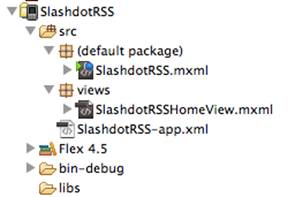
8. Flash Builder will create a new project. The SlashdotRSS project has a different structure than Flex 4 and earlier versions and is worth exploring. The SlashdotRSS.mxml file under the default package is the main entry point into the application. The views package contains the first default view, which is shown as SlashdotRSSHomeView.mxml below. The application descriptor file contains metadata about the project.


Figure 4. Flex Mobile application structure

9. To begin setting up the data service, ensure you are working on the SlashdotRSSHomeView.MXML file and choose Data > Connect to XML.

10. In the Connect To Data/Service dialog box, ensure URL is selected as the XML Source, and then paste the Slashdot URL (http://rss.slashdot.org/Slashdot/slashdot) in the URL text box. Click Invoke.


Figure 5. The Connect to Data/Service dialog box.

11. After Flash Builder introspects the service, select item as the Node. You may have to scroll down quite a ways to find it. You should see that Is Array? is checked and the default service and package names have been provided as shown in Figure 5.

12. Click Finish.

13. After Flash Builder creates the service, open the Data/Services view (Window > Show View > Data/Services) and locate the newly created service getData() function. Right-click it and select Configure Return Type (see Figure 6).


Figure 6. Selecting Configure Return Type for getData().

14. In the Configure Return Type dialog box, ensure Auto–detect The Return Type From Sample Data is selected and click Next.

15. On the next screen, select Enter A Complete URL Including Parameters And Get It. Paste the Slashdot URL in the URL To Get box (see Figure 7) and click Next.


Figure 7. Specifying the URL to use in configuring the return type.

16. On the next screen, type Item as the name of the new data type and select item as the Root node (see Figure 8). Note: If you are using another RSS feed, you will need to figure out which property is the root node.


Figure 8. Selecting the root node.

17. Click Finish.

18. Back in the Data/Services tab, right-click getData() again, and this time click Generate Service Call.

19. In Source View, add a List component and with the following properties: top=”0”, left=”0”,right=”0”,bottom=”0”.

20. Alternatively, you can add the List component in Design View. Then, select it and scroll to the bottom of the Properties tab until you see the Constraints controls. Set them as shown in Figure 9.


Figure 9. Binding the List control to the four corners.
Constraining the List control in this way ensures that the application has a consistent appearance when switching between landscape and portrait orientations.

21. Inside the <list> element set the labelField value to "title". Then add <s:AsynchListView list="{getDataResult.lastResult}" /> as shown below.

 <s:List left="0" right="0" top="0" bottom="0" labelField="title">
    <s:AsyncListView list="{getDataResult.lastResult}" />
 </s:List>


Note: The list property of the AsyncListView instance, which holds the data to be displayed in the List, is set to the data returned from the service call. Using lastResult will cause the list to expand to match the number of items returned.

22. Add a call to getData() on the viewActivate event in the root element.

23. In Design View, change the Chrome (#666666) and Content Background (#336666) colors to match the Slashdot home page. These settings are found on the Appearance tab.

 24. Test your application by running it! Right-click the project in the Package Explorer and select Run > Run As > Mobile Application. When you first run it, you will be asked if you want to launch it in an emulator ("On Desktop") or on a remote device. Use the emulator for now. If you get asked if you want to auto-deploy the model to the server, select No and click OK.


Figure 10. Launching the application (top) and the application running in the emulator (bottom).

In Figure 10, notice the entity reference (&mdash;) that appears in the third element in the list. To get rid of this you’ll have to write some code to handle entity references, which is explained in the next section.

Working with List data
In this section, you will learn how to:
• Set up an event handler for a CollectionChange event and pass the event in
• Use labelFunction to call a special function that accepts a custom data type (Item[]) and returns a String.
• Set up a regular expression variable
• Use the String replace() method to replace an entity reference with another character
This section should take about 10 minutes to complete.
1. If it’s not already open, open the SlashdotRSSHomeView.mxml file.

2. In Source View, set the List control’s id to myList.

3. Position the cursor within the element. Add an event handler for the collectionChange event that invokes a function named fixEntityReferences() when the list values change.

4. Next, add the following code to the <fx:Script> tag to implement the event handler:
import mx.events.CollectionEvent;
import valueObjects.Item;

protected function fixEntityReferences(event:CollectionEvent):void
{
   myList.labelFunction = replaceEntity;
     
   function replaceEntity(item:Item):String
   {
      var p1:RegExp = /(&mdash;)/ig; // perhaps add more here later
      var thisString:String = item.title.replace(p1, "-");
      return thisString;
   }
     
}


The event handler function accepts the event of type CollectionEvent. It adds a labelFunction to the list. Named replaceEntity(), this function accepts an object of type Item. (Item[] is the array that is returned from the getData() service.)
The replaceEntity() function sets up a regular expression variable (p1) that detects the entity reference &mdash;. After creating a String variable named thisString, it calls the replace() method on the item.title, substituting a dash (-) for the entity reference &mdash;. Lastly, it returns the string thisString, which will be reflected as the new item label.
5. Run the program and you will see that any &mdash; entity references no longer exist (see Figure 11).


Figure 11. The application before the entity reference fix (left) and after (right).

Note: The technique used in this section to remedy the entity reference problem is a quick hack, not a best practice. The best practice would be to handle this in the value objects.

Adding the Details view

In this section you will learn how to work with views and the ViewNavigator component, which manages the views in your application as the user navigates through it. Specifically, you will create a new view that shows the details for a single RSS item. This section should take around 20 minutes to complete.
1. To add a new view, right-click the Views package in the Package Explorer and select New > MXML Component. Type DetailsView as the Name, leave the other settings at their default values, and click Finish.
2. Back in SlashdotRSSHome.mxml, position the cursor just inside the end of the <s:List> element in Source View and start typing "change". When Content Assist highlights the change event, select it and then select Generate Change Handler (see Figure 12). This will set up your event handler.


           Figure 12. Generating a change handler for the list.
The newly created change handler function will push a new view that shows a detailed view of the specific item that the user clicked in the list. In Flex mobile projects, views can be pushed and then popped (see Figure 13).


Figure 13. Pushing and popping a view.

3. Update the list change event handler code as shown below.
protected function myList_changeHandler(event:IndexChangeEvent):void
{
   var RSSItem:Object = myList.dataProvider.getItemAt(event.newIndex);
   navigator.pushView(DetailsView, RSSItem);
}

The pushView() method takes two parameters: the view you want to push and a data object to pass to the view. In this case, the RSSItem variable is the data that will be passed to the DetailsView view.
4. Run the application. When you click on an RSS item, the new (and currently empty) details view will be displayed.

Configuring the Details view

In this section you will learn how to access the data object passed when the Details view is pushed by the Home view and display various attributes of the RSS item.
This section should take about 20 minutes to complete.
1. Open the DetailsView.mxml file in Source View.
2. Create an <fx:Script> block and add variables for the title, date, creator, link, and description of the selected RSS item.
<fx:Script>
   <![CDATA[

      [Bindable] private var rtitle:String;
      [Bindable] private var rdate:String;
      [Bindable] private var rcreator:String;
      [Bindable] private var rlink:String;
      [Bindable] private var rdesc:String;
   ]]>
</fx:Script>

3. Switch to Design View, and ensure the details view colors are the same as the home view colors. Use #336666 as the Content Background color and #666666 as the Chrome color to match the Slashdot.org colors.

4. Back in Source View, set up the Details view by adding the following MXML to the content area of the view (below the </fx:Declarations> tag).
<s:BorderContainer top="0" bottom="0" left="0" right="0"
                   backgroundColor="#336666">
     
   <s:Label left="10"  top="20" width="70" fontSize="18" text="Title:"
                textAlign="right"/>
   <s:Label left="90" right="20" top="15" height="45"
                backgroundColor="#FFFFFF" color="#666666" fontSize="18"
                paddingBottom="5" paddingLeft="5" paddingRight="5"
                paddingTop="5" text="{rtitle}"/>

   <s:Label left="10"  top="75" width="70" fontSize="18" text="Date:"
                textAlign="right"/>
       <s:Label left="90" right="20" top="70" height="40"
                backgroundColor="#FEFDFD" color="#666666" fontSize="18"
                paddingBottom="5" paddingLeft="5" paddingRight="5"
                paddingTop="5" text="{rdate}"/>

       <s:Label left="10"  top="125" width="70" fontSize="18" text="Creator:"
                textAlign="right"/>   
   <s:Label left="90" right="20" top="120" height="40"
                backgroundColor="#FFFFFF" color="#666666" fontSize="18"
                paddingBottom="5" paddingLeft="5" paddingRight="5"
                paddingTop="5" text="{rcreator}"/>

       <s:Label left="10"  top="175" width="70" fontSize="18" text="Link:"
                textAlign="right"/>     
  
   <s:Label left="90" right="20" top="170" height="45"
                backgroundColor="#FFFFFF" color="#1C05FB" fontSize="18"
                paddingBottom="5" paddingLeft="5" paddingRight="5"
                paddingTop="5" text="{rlink}" textDecoration="underline"
                click="navigateToURL(new URLRequest(rlink))"/>

   <s:Label left="10"  top="230" width="70" fontSize="18" text="Item:"
                textAlign="right"/>  
       <s:Label left="90" right="20" top="225" bottom="304" color="#666666"
                backgroundColor="#FFFFFF" fontSize="18" paddingBottom="5"
                paddingLeft="5" paddingRight="5" paddingTop="5"
         text="{rdesc}" maxDisplayedLines="10"  />
     
       <s:Button left="50" right="50" bottom="101" label="Go see on Slashdot"
         click="navigateToURL(new URLRequest(rlink))"/>
     

       <s:Label left="15" right="15" bottom="23" fontSize="11"
         text="All trademarks and copyrights on this page are owned by their respective owners. Comments are owned by the Poster. The Rest © 1997-2010 Geeknet, Inc."
         textAlign="center" verticalAlign="middle"/>
  
</s:BorderContainer>


In addition to several Label elements that display the RSS item details, this view includes a button that loads the full RSS item URL in a browser when clicked. This is done using click="navigateToURL(new URLRequest(rlink))".
5. Switch to Design View. In portrait mode, the components fit nicely in the view (see Figure 14). Change to landscape mode. The components adjust to a new layout.
            

Figure 14. The details view in portrait mode.
Since raw RSS feeds often have HTML markup and entity references, the application will have to replace some characters in the RSS feed data. Architecturally, it would be better to handle these substitutions in the value objects package. However, for this application it will be done in the view, even though it is not a best practice.
6. Create a new function in the DetailsView called getDetails() and add the following code.
   import valueObjects.Item;
   private function getDetails():void
   {
      var p:RegExp = /(&mdash;)/ig;
      var h:RegExp = /<p(>|(\s*[^>]*>)).*?<\/p>/ig;
      var thisItem:Item = data as Item;


      rtitle = thisItem.title;
      rtitle = rtitle.replace(p, "-");
      rdate  = thisItem.dc_date;
      rcreator = thisItem.dc_creator
      rlink = thisItem.link;
      rdesc = thisItem.description;
      rdesc = rdesc.replace(h, "");
      rdesc = rdesc.replace(p, "-");


   } 

The keyword data is a variable reference to the data passed to this view.
The title, dc_date, dc_creator, link, and description attributes of the RSS Item object are used to set the variables. The calls to replace() use the regular expressions to replace entity references in the title and the description, as well as to eliminate HTML markup in the description.
7. Add viewActivate="getDetails()" to the root <s:View> element. This will invoke getDetails() when the view is activated. While you’re there, insert a space between "Details" and "View" in the title attribute.
8. Run your application. Click on an item to see the Details view (see Figure 15). Click the button to launch the Slashdot story in a browser.


Figure 15. The completed details view.

Fixing an architectural mistake

In this section you will learn a best practice for mobile development. This section should take around 10 minutes to complete.
Although you may not have noticed it as you used the application in the emulator, each time the home view is shown, a new call is made to the RSS service. This consumes CPU cycles (and battery charge) and also incurs unnecessary data bandwidth charges for the user. Needless to say, this is not the best way for the application to behave.
To get a better understanding of this architectural mistake, it helps to enable the network monitor.
1. In Flash Builder, choose Window > Show View > Other and then select Flash Builder > Network Monitor to open the Network Monitor view.
2. Enable the Network Monitor by clicking the Enable Monitor button (see Figure 16). (It is disabled by default.)


Figure 16. Enabling the Network Monitor.

3. Run your application again in the emulator and watch the network calls as you navigate between the Home view and the Details view. (To return to the Home view from the Details view in the emulator, choose Device > Back or press Control+B.) 
As you can see, there is a service call each time the Home view is displayed. Luckily, this is easy to fix.
1. Open the SlashdotRSSHomeView.mxml file.
2. In the root element, remove the call to getData() on the viewActivate event (see Figure 17). Set the destructionPolicy attribute to "never". While you’re there, set the title attribute to "Slashdot RSS".


 Figure 17. Remove the getData() function call on the viewActivate event.

The destruction policy defines the policy that the view's navigator will use when this view is removed. If set to "auto", the ViewNavigator component will destroy the view when it isn't active. If set to "never", the view will be cached in memory. For items such as an RSS feed that do not update very often, it is best to allow the user to manually refresh the list or to update the list periodically.
You still need to call getData() at the launch of the application. This can be done from the main application file.
3. Open SlashdotRSS.mxml, the file for the main entry point into the application. This is located in the project’s default package. In the Package Explorer it has a blue dot and green triangle beside it (see Figure 18).


Figure 18. Locating the main application file.

4. Add applicationComplete="getRSS()" to the root element of the application (<MobileApplication>). After the application has been initialized, the applicationComplete event is dispatched and getRSS() will be invoked.
<?xml version="1.0" encoding="utf-8"?>
<s:ViewNavigatorApplication xmlns:fx="
http://ns.adobe.com/mxml/2009"
                               xmlns:s="library://ns.adobe.com/flex/spark"
                               firstView="views.SlashdotRSSHomeView"
                               applicationComplete="getRSS()">
    
5. Now create the function that will make the initial service call to get the RSS items. After deleting the empty <fx:Declarations> element, add the following code:

<fx:Script>
   <![CDATA[
   private function getRSS():void
   {
    Object(navigator.activeView).getData(); 
                  }
]]> </fx:Script>

The code Object(navigator.activeView).getData(); can reference the getData() function directly if it has been made public.  If you generated the function, it will be protected by default and that will have to be changed. Since this only gets called once, we do not have to test to see which view is active.
6. Back in the SlashdotRSSHomeView.mxmlfile, change the access modifier for the getData() function from protected to public as shown below.
    //service call
   public function getData():void
   {
      getDataResult.token = slashdot.getData();
   } 
7. Run your application. Verify that getData() is getting called when the application launches.

Adding a manual refresh capability
Now that you have removed the service call that was invoked each time the Home view was shown, it’s a good idea to give the user a way to refresh the list of RSS items manually. In this section you will learn about:
• Action content
• Making calls from the application to functions contained in views
• How to embed icons within buttons
There are basically four main areas for a Flex mobile application built for the Android OS: navigation content, title content, action content, and the view (see Figure 19). Action content is usually on the right-hand side, and that is where you’ll position the icon that will be used to refresh the list.


Figure 19. The main areas of a mobile Flex application.

1. To create a refresh icon, you will need an icon approximately 48 x 48 pixels with a transparent background in PNG format. Locate the refresh48x48.png and info48x48.png files in the icons package of the starter project for this tutorial.
2. Right-click the src folder of your application and select New > Package. Type icons as the package name and click Finish. This will set up a folder for your icon images.
3. Copy the refresh48x48.png and info48x48.png icon files into the new package.
4. Open SlashdotRSSHomeView.mxml and insert the following code, which adds an action content area to the Home view (the File should be named “SlashdotRSS.mxml”) with a button that embeds the refresh icon image.
<s:actionContent>
   <s:Button icon="@Embed(source='icons/refresh48x48.png')" />
</s:actionContent>

5. Run the application to verify that the button is displayed (see Figure 20).


Figure 20. The new refresh button.

6. Switch back to Source View and add the following function:
private function refreshList():void
{
 if (navigator.activeView.name.slice(0,19) == "SlashdotRSSHomeView")
 {
      Object(navigator.activeView).getData(); 
 }
}

7. Within the button declaration, add click="refreshList()" to capture the click event and make a call to the newly created refreshList() function.
   <s:actionContent>
      <s:Button icon="@Embed(source='icons/refresh48x48.png')"
                click="refreshList()"/>
   </s:actionContent>

8. With the Network Monitor on, run the application. Each time you click the refresh button it should invoke another service call.  Ensure that this only happens while in the view where the list is.
The application no longer automatically refreshes. Instead, the addition of a user controlled Refresh button places the power into your users’ hands, which is a best practice. They know their data plan and battery life, and it is a good idea to enable them to control this functionality.

Adding the Info view  

Now that the architecture is solid, it is time to add another view to allow users to see information about the application. The Info view will be relatively simple to add, and it will give users information about getting the source code for the application (pay it forward!).
This section will take about eight minutes to complete.
1. If you have not already done so, copy info48x48.PNG from the starter project to the icons package of your project.
2. Since this icon should be visible from all views in the application, it can be added to the entry point into the application, in this case the SlashdotRSS.mxml file. Add the following code to set up the button and a click event handler named showInfoView() (yet to be written).
<s:actionContent>
   <s:Button icon="@Embed(source='icons/info48x48.png')"
                 click="showInfoView()" />
</s:actionContent>

3. To create the new view, right-click the views package in the Package Explorer and select New > MXML Component.
4. In the New MXML Component dialog box, type views as the Package and InfoView as the Name. Make sure that the new component is based on spark.components.view (see Figure 21) and click Finish.


Figure 21. Adding the InfoView component.

5. Open InfoView.mxml in Source View and change the title attribute in the <s:View> element to "About RSS Reader". Then add the following code.
<s:Label left="0" right="0" top="0" bottom="0" textAlign="center"
        paddingBottom="175" paddingLeft="40" paddingRight="40"
               paddingTop="30"  backgroundColor="#336666"
                text="This application was built to demonstrate how easy it is to create mobile applications using Adobe Flash Builder and Adobe AIR. Slashdot was chosen as a site because it has complex RSS formats and offers an open feed for all to consume. Please consider supporting Slashdot!
The source code for this application is freely available and can be found at
http://technoracle.blogspot.com/2010/12/mobile-slashdot-rss-reader-tutorial.html."/>
   <s:Button left="50" right="50" bottom="140" label="Get Source Code" click="navigateToURL(new URLRequest('http://technoracle.blogspot.com/2010/12/mobile-slashdot-rss-reader-tutorial.html'));"/>
   <s:Label left="15" right="15" bottom="23" fontSize="11"
                text="All trademarks and copyrights on this page are owned by their respective owners. Comments are owned by the Poster. The Rest © 1997-2010 Geeknet, Inc."
                textAlign="center" verticalAlign="middle"/>  

 Note: The text and navigateToURL link can be changed for each project.
6. Open the Home view file (SlashdotRSSHomeView.mxml) and add a function named showInfo() in the <fx:Script> block.  This function will be used to push the  InfoView.
   public function showInfo():void
   {
      navigator.pushView(InfoView);
   } 

7. Repeat the previous step for DetailsView.mxml.
8. Open the SlashdotRSS.mxml file (the entry point into the application) and add a showInfoView() function, which calls the showInfo() function from the active view.
   private function showInfoView():void
   {
        Object(navigator.activeView).showInfo();
   } 
 If you run your application now, you’ll notice the Info button in the InfoView, where it is not needed.
9. To remove the Info button from the Info view, open InfoView.mxml and add an empty <s:actionContent> element.
<s:actionContent/>
10. You'll also notice that the Info button does not appear on the list view where it belongs. This is because the actionContent element in view overrides the one in the main application file.  Open SlashdotRSSHomeView.mxml and add the following to the actionContent element:

<s:Button icon="@Embed(source='icons/info48x48.png')" 
 click="showInfo()" />

Adding a splash screen

You’re almost done building this Flex mobile application. One final thought is that on some devices it might take the application a while to load. A splash screen will let the user know something is happening as the application starts up.
In this section you will learn:
• What a splash screen does and why it is a good idea
• How to add a splash screen
Mobile applications must always strive for efficient use of the CPU and battery. When an application takes time to load, it can give the user the impression that the entire application is sluggish. One way to show the user that the application is reacting quickly to user actions is via the view (in this context, view refers to the MVC pattern concept of view). Adding a splash screen is fortunately quite easy. The splash screen is shown while the main parts of the application load and disappears as the main application has finished initializing.
This section will take less than five minutes to complete.
1. Create a new package under the src folder of your project and name it splash.


Figure 22. The slashscreen.png file in the splash package.

2. Copy the splashscreen.png file from the starter project into the splash package (see Figure 22).


Figure 23. The splash screen image for RSS Reader is 400 x 400 pixels square.
Keep in mind that a user might open your application in landscape mode. To account for this, you can either restrict the application to open only in portrait mode, or set the width and height of your splash screen image so it will not matter; for example, use 400 x 400 pixels (see Figure 23).
3. Open SlashdotRSS.mxml and add splashScreenImage="@Embed('splash/splashscreen.png')" to the root <s:ViewNavigatorApplication> element of the application, as shown below.
<s:ViewNavigatorApplication xmlns:fx="http://ns.adobe.com/mxml/2009"
                            xmlns:s="library://ns.adobe.com/flex/spark"
                       firstView="views.SlashdotRSSHomeView"
                            applicationComplete="getRSS()"
                 splashScreenImage="@Embed('splash/splashscreen.png')"> 
4. Run your application. The splash screen image will appear momentarily while the application is loading.

Packaging your application for the Android Market
Now that you have a fully functioning application, there are a few remaining tasks to complete before you can publish your application to the Android Market. If this is your first time publishing an application, visit http://market.android.com/publish/signup to set up an account.
After you register, you will find list of requirements for publishing your application. Complying with these requirements will help your application look more professional and will also allow people to find it easier. Among the most important requirements are the icons, which are required in multiple sizes from 512 x 512 pixels to 16 x 16 pixels. It is best to develop the largest size first, and then scale down the rest.
Once you have developed a base icon, save it in the following sizes under the /src/icons/ folder in your project:
• icon32x32.png
• icon36x36.png
• icon48x48.png
• icon72x72.png
• icon128x128.png

Ensure you keep the 512 x 512 pixel PNG original as you will need it for the Android Market. Example versions of these icons can be found in the starter project.
Additionally, you will need a PKCS12 digital certificate that is valid until after October 22, 2033. This may surprise you, but it’s not hard to create one. For details on creating your own digital certificate, see Generating a PKCS12 certificate for Android Market.
Follow these steps to place your application in the Android Market.
1. Locate the application descriptor file, which you will find in the project’s src folder (see Figure 24). For this project, it is named SlashdotRSS-app.xml. This XML file specifies parameters for identifying, installing, and launching AIR applications. You will need to make a few modifications to this file.


Figure 24. The application descriptor file.
2. Do not open the file by double-clicking, that would open it with the XML editor. Instead, right-click the file and select Open With > Text Editor.
3. Provide a valid name and version for your application. The name can be changed by editing the <name> element near line 25.
4. Type some descriptive text that identifies your application. For example, you might type Slashdot RSS Monitor or something similar (see Figure 25). Note: The exact line number and comment text may differ from those shown.


Figure 25. Changing the <name> element.
5. Next set the version number for your application. If you decide you are a great coder and there is no chance of any bugs, you might choose version 1.0. Set this value in the <versionNumber> element near line 30 (see Figure 26).


 Figure 26. Changing the <versionNumber> element.

6. Next, you’ll want to define where the main application can locate the proper PNG application icons. Near line 109, find the <image16x16> element, which begins a set of six similar elements (see Figure 27).

Figure 27. The icon elements before editing.
7. Insert the name of the appropriate icon file in each element (see Figure 28).


Figure 28. The icon elements after editing.
There are many other items that may be set in the application descriptor file including descriptions, copyright, and more. For more information, refer to the Adobe AIR documentation.
8. Save your changes.
9. If you have not already done so, copy the necessary icon PNG files from the starter project into your project’s src/icons folder.
10. Right-click the project in the Package Explorer and select Export.
11. In the Export dialog box, select Flash Builder > Release Build (see Figure 29).


Figure 29. Exporting the release build.
12. Click Next.
13. On the next screen, ensure you’re exporting the correct project and leave the other options at their default values (see Figure 30). Click Next.


Figure 30. Specifying the export folder.
14. On the next screen, specify the location of your digital certificate and type the password. Make sure that the certificate you created complies with the requirements of the Android Market. Again, for instructions on creating such a certificate, see Generating a PKCS12 certificate for Android Market.
15. Click Finish.
That’s it! When you see the success confirmation (see Figure 31) you will have a new *.apk file (which is the native installer package for Google Android devices).


Figure 31. Confirmation of a successful release build export.


Where to go from here

Congratulations! You are now a mobile developer!
I encourage you to try your hand at developing your own mobile applications using Flash Builder and the techniques you’ve learned in the article.
For more information on Flex mobile development see the following resources:
• Flex Test Drive for Mobile: Build a mobile application in an hour
• Mobile Application Development with Flex
• Video of this tutorial:  Part 1  Part 2