This is the latest in a series of videos aimed at Adobe LiveCycle ES2 for Java (tm) developers. This tutorial covers using SOAP based web services to invoke remote ES2 services. The project is built in the Eclipse IDE and if you want it, email us here at technoracle.
Showing posts with label java. Show all posts
Showing posts with label java. Show all posts
Friday, June 04, 2010


Thursday, April 09, 2009
Invoking the LiveCycle ES 8.2.1 Distiller API from Java
Scott MacDonald and I created a tutorial to help LiveCycle ES developers better understand the process around using the Quick Start guides available from the LiveCycle area of the Adobe Developer Connection. In this tutorial, you will learn how to download and configure the code samples, configure the right JAR files, set user permissions, and invoke a LiveCycle ES SOAP endpoint to convert a PostScript file into a PDF file.
Before you start:
You will need to ensure you have the following on your local drive. I used a MacBook Pro laptop to conduct this lab.
You will also need the third-party JAR files to use the SOAP stack rather than EJB endpoints. If you want to invoke a remote LiveCycle ES instance and there is a firewall between the client application and LiveCycle ES, then it is recommended that you use the SOAP mode. When using the SOAP mode, you have to include additional JAR files located in the following path:
For information about the SOAP and EJB mode, see "Setting connection properties" in Programming with LiveCycle ES.
For complete details about the location of the LiveCycle ES JAR files, see "Including LiveCycle ES library files" in Programming with LiveCycle ES.
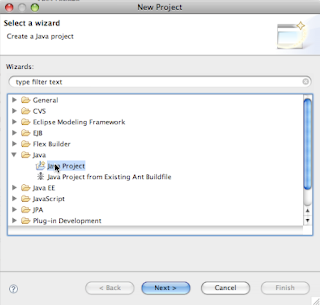
1. Open up Eclipse and set up a new Java project by choosing File > New > Project.
2. Select Java Project.
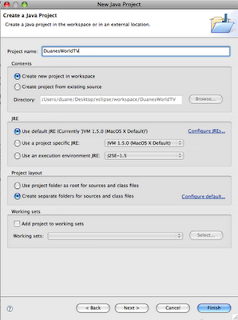
3. Type a name for the project and click Finish.
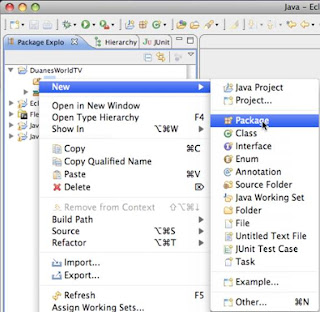
4. When the new project opens in your workspace navigator, right-click (Windows) or Control-click (Mac) on the src folder under the project.
5. Choose New > Package.
6. Type a name for your package (I used “org.duanesworldtv.samples”) and click Finish. This step is important because it keeps your class files distinct from other class files with the same names under your workspace by namespace qualifying them.
7. Right-click on the package name you just created (under your project) and choose New > Class to create a new class file.
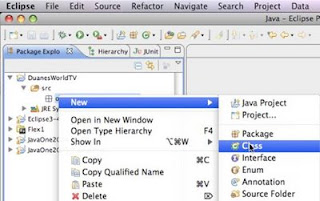
8. In the New Java Class dialog box, type the name for your class (I used “CreatePDF”) and click Finish.
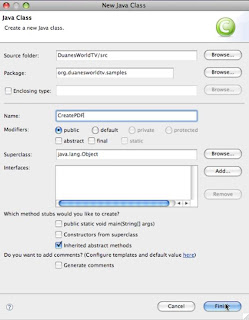
9. You should see some skeleton code under your new project. Highlight all code below the package name and delete it.
10. Replace the deleted skeleton code with this source code:
package org.duanesworldtv.samples;
11. When you paste this code into your project, you will notice several red Xs beside various lines. This is because you have not yet imported any of the LiveCycle ES JAR files.
There are a couple of gotchas you need to know about with respect to these JARs.
First, the JARs must be from the same release of LiveCycle as the instance you are going to connect to. JARs from 8.0, for example, might not always work with an 8.2.1 instance.
Second, the JARs are in various locations and not always easy to grab. (See above for the exact locations.)
We put our jars into a parallel directory that we created under our Eclipse workspace called “JavaOne2009_libs”. This allows us to easily use these JAR files for multiple projects.
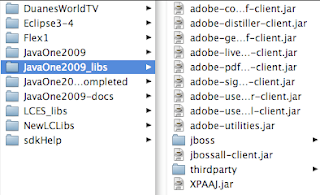
12. To add the JARs to your project, highlight the project name in the navigator tab, then right-click and open the project Properties dialog box.
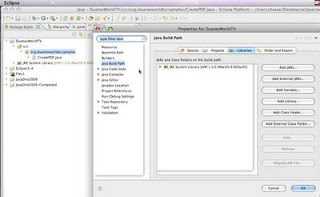
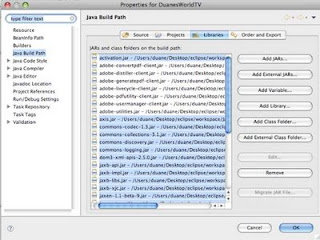
13. Select Java Build Path and then the Libraries tab. Click Add External Jars. Select all the JARs under the “thirdparty” folder (for SOAP only – these are not required for EJB endpoints invocation). You will also need to import the Adobe LiveCycle Client JARs. (Note: In the image below we have highlighted some extra jars because we plan to add more class files to this project later.)
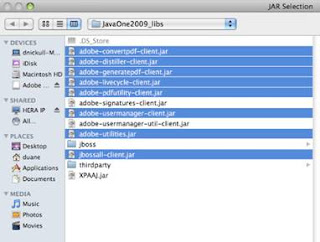
14. Once your JAR files are added, your build path should look similar to this:
15. Click OK, check any warnings in Eclipse, and correct as needed.
16. Now locate the lines of code that set the connection properties. They are at around line 14 and look like this:
17. You will have to change three values. The first is the server IP address and port. If the server is on the same machine, http://localhost:8080 should suffice. Change it as required to match your server's location.
18. Next, you will be required to supply a username and password of a user with the right privileges. We used the username "kvarsen" because it is installed by default when you install the LiveCycle ES samples. The matching password for kvarsen is “password”, all lowercase.
To run the code in this tutorial, however, you will need to update the roles assigned to kvarsen. To do this, you must have administrator access to the LiveCycle Server you wish to connect to. Log in to the adminui at http://{your_server_ip}:{http_port}/adminui. For example, ours was http://duanesworldtv.org:8080/adminui. Once inside, navigate to Home > Settings > User Management > Users and Groups.
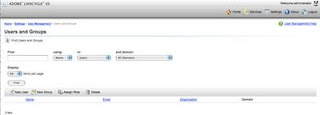
19. Type the user's name in the Find text box (for Kel Varsen, type “varsen”) and click Find. The user's name will come up in the list with a hyperlink. Click on the name to show what permissions the user has.
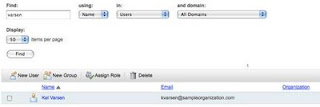
20. Click the Role Assignments tab.
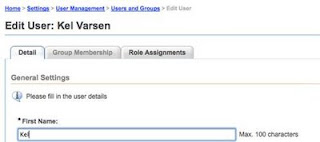
21. This will bring up a screen that shows all the roles and permissions that this particular user has. For this tutorial, you want to ensure that Kel Varsen is privileged with the PDFG (PDF Generation) service. (In the screenshot below the user is already assigned the PDFG User role; your setup will likely not show this yet.)
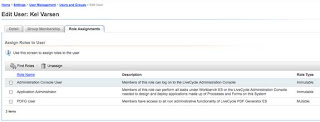
22. To find the appropriate roles, click Find Roles, which will bring up a list.
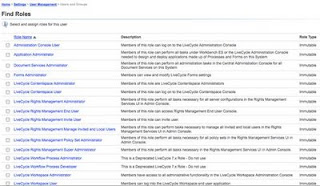
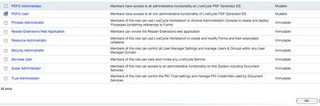
23. Locate and select the PDFG User role, and then click OK. You can then log out of the adminui console.
24. You are almost ready to run the code. Back in Eclipse, you will notice two lines of code that contain path references. One is a reference to a PostScript document. You need to change this to correspond to an absolute path to a PostScript document on your hard drive. The path we used is:
25. Replace this path with a path to a valid Postscript file.
26. You also need to specify the path used to save the file when it comes back from LiveCycle ES. This is around line 72 and looks something like the code below. Change the path to a location on your system for which you have access.
27. Now run the application. You should see the console output working with no errors. Go to the location you referenced in the previous step and you should find a file there titled “DuanesWorldTest.pdf” or whatever you named your file.
Congratulations – you have just invoked your first remote SOAP endpoint using LiveCycle ES!
Before you start:
You will need to ensure you have the following on your local drive. I used a MacBook Pro laptop to conduct this lab.
- Java JDK 1.5 – ensure your environment variables are set as per the instructions from the LiveCycle ES documentation
- Eclipse 3.4 (Ganymede)
- The LiveCycle ES Client SDK JAR files. You will need the following JAR files to make this lab work:
/*
* This Java Quick Start uses the EJB mode and contains the following JAR files
* in the class path:
* 1. adobe-encryption-client.jar
* 2. adobe-livecycle-client.jar
* 3. adobe-usermanager-client.jar
* 4. adobe-utilities.jar
* 5. jbossall-client.jar (use a different JAR file if LiveCycle ES is not
*    deployed on JBoss)
*
*  These JAR files are located in the following path:
* {install directory}/Adobe/LiveCycle9.0/LiveCycle_ES_SDK/client-libs/common
*
* The adobe-utilities.jar file is located in the following path:
* {install directory}/Adobe/LiveCycle9.0/LiveCycle_ES_SDK/client-libs/jboss
*
* The jbossall-client.jar file is located in the following path:
* {install directory}/Adobe/LiveCycle9.0/jboss/client
*/
You will also need the third-party JAR files to use the SOAP stack rather than EJB endpoints. If you want to invoke a remote LiveCycle ES instance and there is a firewall between the client application and LiveCycle ES, then it is recommended that you use the SOAP mode. When using the SOAP mode, you have to include additional JAR files located in the following path:
/*
{install directory}/Adobe/LiveCycle9.0/LiveCycle_ES_SDK/client-
*  libs/thirdparty
*/
For information about the SOAP and EJB mode, see "Setting connection properties" in Programming with LiveCycle ES.
For complete details about the location of the LiveCycle ES JAR files, see "Including LiveCycle ES library files" in Programming with LiveCycle ES.
1. Open up Eclipse and set up a new Java project by choosing File > New > Project.
2. Select Java Project.

3. Type a name for the project and click Finish.

4. When the new project opens in your workspace navigator, right-click (Windows) or Control-click (Mac) on the src folder under the project.
5. Choose New > Package.

6. Type a name for your package (I used “org.duanesworldtv.samples”) and click Finish. This step is important because it keeps your class files distinct from other class files with the same names under your workspace by namespace qualifying them.
7. Right-click on the package name you just created (under your project) and choose New > Class to create a new class file.

8. In the New Java Class dialog box, type the name for your class (I used “CreatePDF”) and click Finish.

9. You should see some skeleton code under your new project. Highlight all code below the package name and delete it.
10. Replace the deleted skeleton code with this source code:
package org.duanesworldtv.samples;
/*
* This Java Quick Start uses the following JAR files
* 1. adobe-distiller-client.jar
* 2. adobe-livecycle-client.jar
* 3. adobe-usermanager-client.jar
* 4. adobe-utilities.jar
* 5. jbossall-client.jar (use a different JAR file if LiveCycle ES is not deployed
* on JBoss)
*
* These JAR files are located in the following path:
*/Adobe/LiveCycle8/LiveCycle_ES_SDK/client-libs
*
* For complete details about the location of these JAR files,
* see "Including LiveCycle ES library files" in Programming
* with LiveCycle ES
*/
import java.io.File;
import java.io.FileInputStream;
import java.util.Properties;
import com.adobe.livecycle.generatepdf.client.CreatePDFResult;
import com.adobe.idp.Document;
import com.adobe.idp.dsc.clientsdk.ServiceClientFactory;
import com.adobe.idp.dsc.clientsdk.ServiceClientFactoryProperties;
import com.adobe.livecycle.distiller.client.DistillerServiceClient;
public class CreatePDF {
public static void main(String[] args)
{
try
{
//Set connection properties required to invoke LiveCycle ES
Properties ConnectionProps = new Properties();
ConnectionProps.setProperty(ServiceClientFactoryProperties.DSC_DEFAULT_SOAP_ENDPOINT, "http://{your_server_IP}:{HTTP_PORT}");
ConnectionProps.setProperty(ServiceClientFactoryProperties.DSC_TRANSPORT_PROTOCOL,ServiceClientFactoryProperties.DSC_SOAP_PROTOCOL);
ConnectionProps.setProperty(ServiceClientFactoryProperties.DSC_SERVER_TYPE, "JBoss");
ConnectionProps.setProperty(ServiceClientFactoryProperties.DSC_CREDENTIAL_USERNAME, "{username_of_privileged_user}");
ConnectionProps.setProperty(ServiceClientFactoryProperties.DSC_CREDENTIAL_PASSWORD, "{password}");
// Create a ServiceClientFactory instance
ServiceClientFactory factory = ServiceClientFactory.createInstance(ConnectionProps);
DistillerServiceClient disClient = new DistillerServiceClient(factory );
// Get a PS file document to convert to a PDF document and populate a com.adobe.idp.Document object
String inputFileName = "/Users/duane/Desktop/eclipse/workspace/JavaOne2009-docs/test.ps";
FileInputStream fileInputStream = new FileInputStream(inputFileName);
Document inDoc = new Document(fileInputStream);
//Set run-time options
String adobePDFSettings = "Standard";
String securitySettings = "No Security";
//Convert a PS file into a PDF file
CreatePDFResult result = new CreatePDFResult();
result = disClient.createPDF(
inDoc,
inputFileName,
adobePDFSettings,
securitySettings,
null,
null
);
//Get the newly created document
Document createdDocument = result.getCreatedDocument();
//Save the PDF file
createdDocument.copyToFile(new File("/Users/duane/Desktop/eclipse/workspace/JavaOne2009-docs/DuanesWorldTest.pdf"));
}
catch (Exception e) {
e.printStackTrace();
}
}
}
11. When you paste this code into your project, you will notice several red Xs beside various lines. This is because you have not yet imported any of the LiveCycle ES JAR files.
There are a couple of gotchas you need to know about with respect to these JARs.
First, the JARs must be from the same release of LiveCycle as the instance you are going to connect to. JARs from 8.0, for example, might not always work with an 8.2.1 instance.
Second, the JARs are in various locations and not always easy to grab. (See above for the exact locations.)
We put our jars into a parallel directory that we created under our Eclipse workspace called “JavaOne2009_libs”. This allows us to easily use these JAR files for multiple projects.

12. To add the JARs to your project, highlight the project name in the navigator tab, then right-click and open the project Properties dialog box.

13. Select Java Build Path and then the Libraries tab. Click Add External Jars. Select all the JARs under the “thirdparty” folder (for SOAP only – these are not required for EJB endpoints invocation). You will also need to import the Adobe LiveCycle Client JARs. (Note: In the image below we have highlighted some extra jars because we plan to add more class files to this project later.)

14. Once your JAR files are added, your build path should look similar to this:

15. Click OK, check any warnings in Eclipse, and correct as needed.
16. Now locate the lines of code that set the connection properties. They are at around line 14 and look like this:
//Set connection properties required to invoke LiveCycle ES
Properties ConnectionProps = new Properties();
ConnectionProps.setProperty(ServiceClientFactoryProperties.DSC_DEFAULT_SOAP_ENDPOINT, "http://{your_server_ip}:{http_port}");
ConnectionProps.setProperty(ServiceClientFactoryProperties.DSC_TRANSPORT_PROTOCOL,ServiceClientFactoryProperties.DSC_SOAP_PROTOCOL);
ConnectionProps.setProperty(ServiceClientFactoryProperties.DSC_SERVER_TYPE, "JBoss");
ConnectionProps.setProperty(ServiceClientFactoryProperties.DSC_CREDENTIAL_USERNAME, "{username_of_privileged_user}");
ConnectionProps.setProperty(ServiceClientFactoryProperties.DSC_CREDENTIAL_PASSWORD, "{password}");
17. You will have to change three values. The first is the server IP address and port. If the server is on the same machine, http://localhost:8080 should suffice. Change it as required to match your server's location.
18. Next, you will be required to supply a username and password of a user with the right privileges. We used the username "kvarsen" because it is installed by default when you install the LiveCycle ES samples. The matching password for kvarsen is “password”, all lowercase.
To run the code in this tutorial, however, you will need to update the roles assigned to kvarsen. To do this, you must have administrator access to the LiveCycle Server you wish to connect to. Log in to the adminui at http://{your_server_ip}:{http_port}/adminui. For example, ours was http://duanesworldtv.org:8080/adminui. Once inside, navigate to Home > Settings > User Management > Users and Groups.

19. Type the user's name in the Find text box (for Kel Varsen, type “varsen”) and click Find. The user's name will come up in the list with a hyperlink. Click on the name to show what permissions the user has.

20. Click the Role Assignments tab.

21. This will bring up a screen that shows all the roles and permissions that this particular user has. For this tutorial, you want to ensure that Kel Varsen is privileged with the PDFG (PDF Generation) service. (In the screenshot below the user is already assigned the PDFG User role; your setup will likely not show this yet.)

22. To find the appropriate roles, click Find Roles, which will bring up a list.

23. Locate and select the PDFG User role, and then click OK. You can then log out of the adminui console.

24. You are almost ready to run the code. Back in Eclipse, you will notice two lines of code that contain path references. One is a reference to a PostScript document. You need to change this to correspond to an absolute path to a PostScript document on your hard drive. The path we used is:
// Get a PS file document to convert to a PDF document and populate a com.adobe.idp.Document object
String inputFileName = "/Users/duane/Desktop/eclipse/workspace/JavaOne2009-docs/test.ps";
25. Replace this path with a path to a valid Postscript file.
26. You also need to specify the path used to save the file when it comes back from LiveCycle ES. This is around line 72 and looks something like the code below. Change the path to a location on your system for which you have access.
//Save the PDF file
createdDocument.copyToFile(new File("/Users/duane/Desktop/eclipse/workspace/JavaOne2009-docs/DuanesWorldTest.pdf"));
27. Now run the application. You should see the console output working with no errors. Go to the location you referenced in the previous step and you should find a file there titled “DuanesWorldTest.pdf” or whatever you named your file.
Congratulations – you have just invoked your first remote SOAP endpoint using LiveCycle ES!
Friday, May 11, 2007
Duane's World 2007 Java One "Coolest in Show" award
Every year I blog after Java One and recognize one company, demo, entry, exhibit that is better than all others. In 2006, this award went to a robotic Lego and Java demonstration. This is never an easy task since there are so many cool things at Java One. This year is no easier. After much internal debate and watching the "wow" factor from peopel seeing things for the first time, I bestow the 2007 Duane's World "Best in Show" award to the Java powered helicopter. Das ist ein sehr gute Hubschrauber!

Runners up were the Sun SPOT (Small Programmable Object Technology) and the Quebec University students Java submarine. the latter failed to make tops given they have not yet included an adaptive algorithm to learn and re-program thrust bursts based on Causality Event Programming models (The thrusters usually over-compensated in attempts to level the device). While it is not "kinderspiele" (Child's play), it could be done with minimal effort. Quebec has a long history of great technology and good hockey goalies so I look forward to seeing what they bring next year.
Disclaimer: I excluded the Flex, Apollo and Java PDF code from Adobe.

Runners up were the Sun SPOT (Small Programmable Object Technology) and the Quebec University students Java submarine. the latter failed to make tops given they have not yet included an adaptive algorithm to learn and re-program thrust bursts based on Causality Event Programming models (The thrusters usually over-compensated in attempts to level the device). While it is not "kinderspiele" (Child's play), it could be done with minimal effort. Quebec has a long history of great technology and good hockey goalies so I look forward to seeing what they bring next year.
Disclaimer: I excluded the Flex, Apollo and Java PDF code from Adobe.
Thursday, May 10, 2007
Java One 2007 source code and slides
Java One 2007 is full on! My favorite was the helicopter but I also can't wait to start developing with the SunSpot devices. I think I am going to build a solar tracking device.
Anyways - thanks to all of you who came to my talk. I was overwhelmed with the great reception and applause and felt really humble to be appreciated by such an esteemed and knowledgable peer group. I don't use Java every day so I was happy to see all the code I wrote for you compile the first time. Felt like I dodged a bullet.
Here is the first class (DuanePDFClass2.java). You will need to download the XPAAJ.jar file to make this work. The other class is directly below. You should also know that we are moving towards the XML friendly version of PDF ("Mars") which will allow any developer to work with PDF XML formats using the XML parser in their native language. For the long term, this is a much better solution than us developing libraries for each and every programming language.
import java.io.*;
import java.util.*;
import java.awt.image.DataBuffer;
import com.adobe.pdf.*;
public class DuanePDFClass2 {
public static void main(String[] args)
throws FileNotFoundException, IOException
/* Make sure we have the correct args.length() and call PDFExtract() */
{
String inPdfName;
if(args.length != 1 )
{
System.out.println("\nCommand line format: java classname pdf-file");
return;
}
else
{
inPdfName = new String(args[0]);
PDFExtract(inPdfName);
}
}
public static void PDFExtract(String inPdfName)
throws FileNotFoundException, IOException
{
System.out.println("\nOpening PDF with DuanePDFClass2...");
PDFDocument doc = null;
boolean b = false;
FileInputStream inPdfFile = new FileInputStream(inPdfName);
try {
doc = PDFFactory.openDocument(inPdfFile);
} catch (IOException e) {
System.out.println("Error opening PDF file :" + inPdfName);
System.out.println(e);
}
if(doc == null)
System.out.println("Cannot open PDF file : " + inPdfName);
else
System.out.println( inPdfName + " was successfully opened.");
System.out.println ("Document Version = " + doc.getVersion());
System.out.println ("PDF is " + doc.getNumberOfPages() + " pages long.");
/*Save PDF to file*/
System.out.println ("\nSaving document ... ");
int j = inPdfName.lastIndexOf(".");
String outPdfName = inPdfName.substring(0, j) + "_saved_by_Duane_at_JavaOne2007" + ".pdf";
InputStream inputStream;
inputStream = doc.save();
b = false;
try {
b = saveFile(inputStream, outPdfName);
} catch (Exception e) {
System.out.println("Error saving PDF file.");
System.out.println(e);
}
if(b == true)
System.out.println ("Document was saved to file : " + outPdfName);
else
System.out.println("Document was not saved to file.");
System.out.println("\nExecution of DuanePDFClass1 has finished.");
}
/**
method to save InputStream to a file.
*/
public static boolean saveFile(InputStream is, String filePath)
throws Exception
{
boolean retVal=false;
byte[] buffer = new byte[10240];
FileOutputStream outStream = null;
try
{
outStream = new FileOutputStream(filePath);
int len=0;
while (true)
{
len = is.read(buffer);
if (len == -1)
break;
outStream.write(buffer, 0, len);
}
outStream.close();
retVal = true;
}
catch (IOException io)
{
System.out.println("Writing the array of bytes into the file "
+ filePath + " failed.");
throw new Exception(
"Writing the array of bytes into the file "+ filePath +
" failed in saveFile");
}
return retVal;
}
}
Here is the second class which casts the input stream handed off by the Document factory class into a buffered stream reader and strips out the XMP metadata.
import java.io.*;
import java.util.*;
import java.awt.image.DataBuffer;
import com.adobe.pdf.*;
/* XMPExtractSample
* by Duane Nickull, Adobe Systems Inc. dnickull@adobe.com
* Copyright (c) October 25, 2006 - all rights reserved
*
* Use this at your own risk and don't whine/winge on to me if it doesn't work.
* You will need to have XPAAJ.jar from Adobe labs.
* Written and tested with JDK 1.5 on a mac w/osx 10.4.7
*/
public class XMPExtractSample {
public static void main(String[] args)
throws FileNotFoundException, IOException
/* Make sure we have the correct args.length() and call PDFExtract() */
{
String inPdfName;
if(args.length != 1 )
{
System.out.println("\nCommand line format: java DuanePDFClass1 pdf-file");
return;
}
else
{
inPdfName = new String(args[0]);
PDFExtract(inPdfName);
}
}
public static void PDFExtract(String inPdfName)
throws FileNotFoundException, IOException
{
System.out.println("\nOpening PDF with DuanePDFClass1...");
PDFDocument doc = null;
boolean b = false;
FileInputStream inPdfFile = new FileInputStream(inPdfName);
try {
doc = PDFFactory.openDocument(inPdfFile);
} catch (IOException e) {
System.out.println("Error opening PDF file :" + inPdfName);
System.out.println(e);
}
if(doc == null)
System.out.println("Cannot open PDF file : " + inPdfName);
else
System.out.println( "\n" + inPdfName + " was successfully opened.");
// Export the xmp metadata from the document
try {
//Call the PDFDocument object's exportXMP method.
InputStream myXMPStream = doc.exportXMP();
//Get the byte size of the InputStream object.
int numBytes = myXMPStream.available();
System.out.println("\nNumber of XMP Bytes found is " + numBytes + "\n");
// Read into a Buffered Reader Stream.
BufferedReader d = new BufferedReader(new InputStreamReader(myXMPStream));
// Iterate through the XMP object and print each line
String xmpLine;
while((xmpLine = d.readLine()) != null)
{
System.out.println(xmpLine);
}
// Find the Physical Memory Reference of the object
System.out.println("\nXMP InputStream is in physical memory at -> " + d);
//Create an array of bytes. Allocate numBytes of memory.
byte [] MDBytes = new byte[numBytes];
//Read the XMP metadata by calling the InputStream object’s read method.
myXMPStream.read(MDBytes);
} catch (IOException e){
System.out.println("it went really bad" + e );
}
System.out.println("\nXMP Extraction has finished.");
}
}
Anyways - thanks to all of you who came to my talk. I was overwhelmed with the great reception and applause and felt really humble to be appreciated by such an esteemed and knowledgable peer group. I don't use Java every day so I was happy to see all the code I wrote for you compile the first time. Felt like I dodged a bullet.
Here is the first class (DuanePDFClass2.java). You will need to download the XPAAJ.jar file to make this work. The other class is directly below. You should also know that we are moving towards the XML friendly version of PDF ("Mars") which will allow any developer to work with PDF XML formats using the XML parser in their native language. For the long term, this is a much better solution than us developing libraries for each and every programming language.
import java.io.*;
import java.util.*;
import java.awt.image.DataBuffer;
import com.adobe.pdf.*;
public class DuanePDFClass2 {
public static void main(String[] args)
throws FileNotFoundException, IOException
/* Make sure we have the correct args.length() and call PDFExtract() */
{
String inPdfName;
if(args.length != 1 )
{
System.out.println("\nCommand line format: java classname pdf-file");
return;
}
else
{
inPdfName = new String(args[0]);
PDFExtract(inPdfName);
}
}
public static void PDFExtract(String inPdfName)
throws FileNotFoundException, IOException
{
System.out.println("\nOpening PDF with DuanePDFClass2...");
PDFDocument doc = null;
boolean b = false;
FileInputStream inPdfFile = new FileInputStream(inPdfName);
try {
doc = PDFFactory.openDocument(inPdfFile);
} catch (IOException e) {
System.out.println("Error opening PDF file :" + inPdfName);
System.out.println(e);
}
if(doc == null)
System.out.println("Cannot open PDF file : " + inPdfName);
else
System.out.println( inPdfName + " was successfully opened.");
System.out.println ("Document Version = " + doc.getVersion());
System.out.println ("PDF is " + doc.getNumberOfPages() + " pages long.");
/*Save PDF to file*/
System.out.println ("\nSaving document ... ");
int j = inPdfName.lastIndexOf(".");
String outPdfName = inPdfName.substring(0, j) + "_saved_by_Duane_at_JavaOne2007" + ".pdf";
InputStream inputStream;
inputStream = doc.save();
b = false;
try {
b = saveFile(inputStream, outPdfName);
} catch (Exception e) {
System.out.println("Error saving PDF file.");
System.out.println(e);
}
if(b == true)
System.out.println ("Document was saved to file : " + outPdfName);
else
System.out.println("Document was not saved to file.");
System.out.println("\nExecution of DuanePDFClass1 has finished.");
}
/**
method to save InputStream to a file.
*/
public static boolean saveFile(InputStream is, String filePath)
throws Exception
{
boolean retVal=false;
byte[] buffer = new byte[10240];
FileOutputStream outStream = null;
try
{
outStream = new FileOutputStream(filePath);
int len=0;
while (true)
{
len = is.read(buffer);
if (len == -1)
break;
outStream.write(buffer, 0, len);
}
outStream.close();
retVal = true;
}
catch (IOException io)
{
System.out.println("Writing the array of bytes into the file "
+ filePath + " failed.");
throw new Exception(
"Writing the array of bytes into the file "+ filePath +
" failed in saveFile");
}
return retVal;
}
}
Here is the second class which casts the input stream handed off by the Document factory class into a buffered stream reader and strips out the XMP metadata.
import java.io.*;
import java.util.*;
import java.awt.image.DataBuffer;
import com.adobe.pdf.*;
/* XMPExtractSample
* by Duane Nickull, Adobe Systems Inc. dnickull@adobe.com
* Copyright (c) October 25, 2006 - all rights reserved
*
* Use this at your own risk and don't whine/winge on to me if it doesn't work.
* You will need to have XPAAJ.jar from Adobe labs.
* Written and tested with JDK 1.5 on a mac w/osx 10.4.7
*/
public class XMPExtractSample {
public static void main(String[] args)
throws FileNotFoundException, IOException
/* Make sure we have the correct args.length() and call PDFExtract() */
{
String inPdfName;
if(args.length != 1 )
{
System.out.println("\nCommand line format: java DuanePDFClass1 pdf-file");
return;
}
else
{
inPdfName = new String(args[0]);
PDFExtract(inPdfName);
}
}
public static void PDFExtract(String inPdfName)
throws FileNotFoundException, IOException
{
System.out.println("\nOpening PDF with DuanePDFClass1...");
PDFDocument doc = null;
boolean b = false;
FileInputStream inPdfFile = new FileInputStream(inPdfName);
try {
doc = PDFFactory.openDocument(inPdfFile);
} catch (IOException e) {
System.out.println("Error opening PDF file :" + inPdfName);
System.out.println(e);
}
if(doc == null)
System.out.println("Cannot open PDF file : " + inPdfName);
else
System.out.println( "\n" + inPdfName + " was successfully opened.");
// Export the xmp metadata from the document
try {
//Call the PDFDocument object's exportXMP method.
InputStream myXMPStream = doc.exportXMP();
//Get the byte size of the InputStream object.
int numBytes = myXMPStream.available();
System.out.println("\nNumber of XMP Bytes found is " + numBytes + "\n");
// Read into a Buffered Reader Stream.
BufferedReader d = new BufferedReader(new InputStreamReader(myXMPStream));
// Iterate through the XMP object and print each line
String xmpLine;
while((xmpLine = d.readLine()) != null)
{
System.out.println(xmpLine);
}
// Find the Physical Memory Reference of the object
System.out.println("\nXMP InputStream is in physical memory at -> " + d);
//Create an array of bytes. Allocate numBytes of memory.
byte [] MDBytes = new byte[numBytes];
//Read the XMP metadata by calling the InputStream object’s read method.
myXMPStream.read(MDBytes);
} catch (IOException e){
System.out.println("it went really bad" + e );
}
System.out.println("\nXMP Extraction has finished.");
}
}
Friday, March 23, 2007
Adobe SOA platform launches Data Services
Architects, Flex/Apollo/LiveCycle/Java Developers take note. Adobe® LiveCycle Data Services 2.5 has just been released on Adobe labs for Windows, Linux, Unix as well as a cross platform java installer. Adobe has been a pragmatic adopter of SOA for years and this release shows engineering excellence and forethought. LDS is the next generation of Flex Data Services.
The name change reflects an important expansion in the use of these valuable services. In addition to serving the needs of both Flex and Ajax developers, LiveCycle Data Services will provide enhanced integration with Adobe’s other LiveCycle server products for document and process management, enabling business to create new ways to engage and reach customers.
Most people might think of SOA as only request-response. This is not the only pattern for service interaction within SOA and there are many others such as subscribe-push, multicast, probe and match etc. LiveCycle Data Services is a J2EE server that fulfills many
The name change reflects an important expansion in the use of these valuable services. In addition to serving the needs of both Flex and Ajax developers, LiveCycle Data Services will provide enhanced integration with Adobe’s other LiveCycle server products for document and process management, enabling business to create new ways to engage and reach customers.
Most people might think of SOA as only request-response. This is not the only pattern for service interaction within SOA and there are many others such as subscribe-push, multicast, probe and match etc. LiveCycle Data Services is a J2EE server that fulfills many
The feature set of LiveCycle Data Services 2.5 includes:
- A new Flex SDK (which will be released currently with Data Services 2.5), which includes updates the client-side Web Services library.
- Server-side PDF generation capabilities for RIA applications generates properly formatted PDF documents that include graphical assets from Flex applications, such as graphs and charts.
- Runtime configuration of data destinations in Data Services eliminates the need for a compile-time dependency between clients and the Data Services server configuration.
- Support for WSRP portal deployment of Flex applications, which makes it easy for developers to deploy a Flex application as a portlet in a portal server without having to do any portal specific programming.
- Per Client Messaging quality of service (QoS) allowing Flex clients to select custom data access policies for real- time data.
- Ajax Data Services, enabling Ajax applications to take advantage of the data management and messaging capabilities available in Data Services.
- The Flex-Ajax Bridge (FABridge), which is a small library that can be inserted into a Flex application, a Flex component, or even an empty SWF file to expose it to scripting in the browser without any additional coding.
- Improved off-line message queuing, supporting future Apollo development, which allows Flex applications using Data Services to queue outbound messages locally when the client is offline and manage exactly what is sent to the server upon reconnect.
- Groundwork for future Apollo application support, including a local data cache that enables developers to cache client data requests and data changes to the local file system for later retrieval when an application resumes.
- RTMP tunneling (RTMPT) that allows the use of the RTMP protocol in Data Service applications to traverse firewalls and proxies that currently prevent direct RTMP client connections to the server.
- A new SQL adaptor, which dramatically simplifies the development of applications using Data Management Services without having to write any server-side Java code.
- A new JSP Tag Library that enables MXML and ActionScript code to be embedded into a JSP page providing an easier entry for J2EE developers to Flex programming.
- Several important enhancements to core Data Services performance and scalability.
LiveCycle Data Services 2.5 includes the following Web Application Archive (WAR) files:
- flex.war - The primary Flex WAR file: use this as a starting point for building your LiveCycle Data Services application.
- samples.war - Sample Flex applications.
- inventory.war - Data Management Service - Ajax sample application
- flex-admin.war - Simple administration and monitoring application.
Subscribe to:
Posts (Atom)